Step 1. Open Mudita Center and connect your device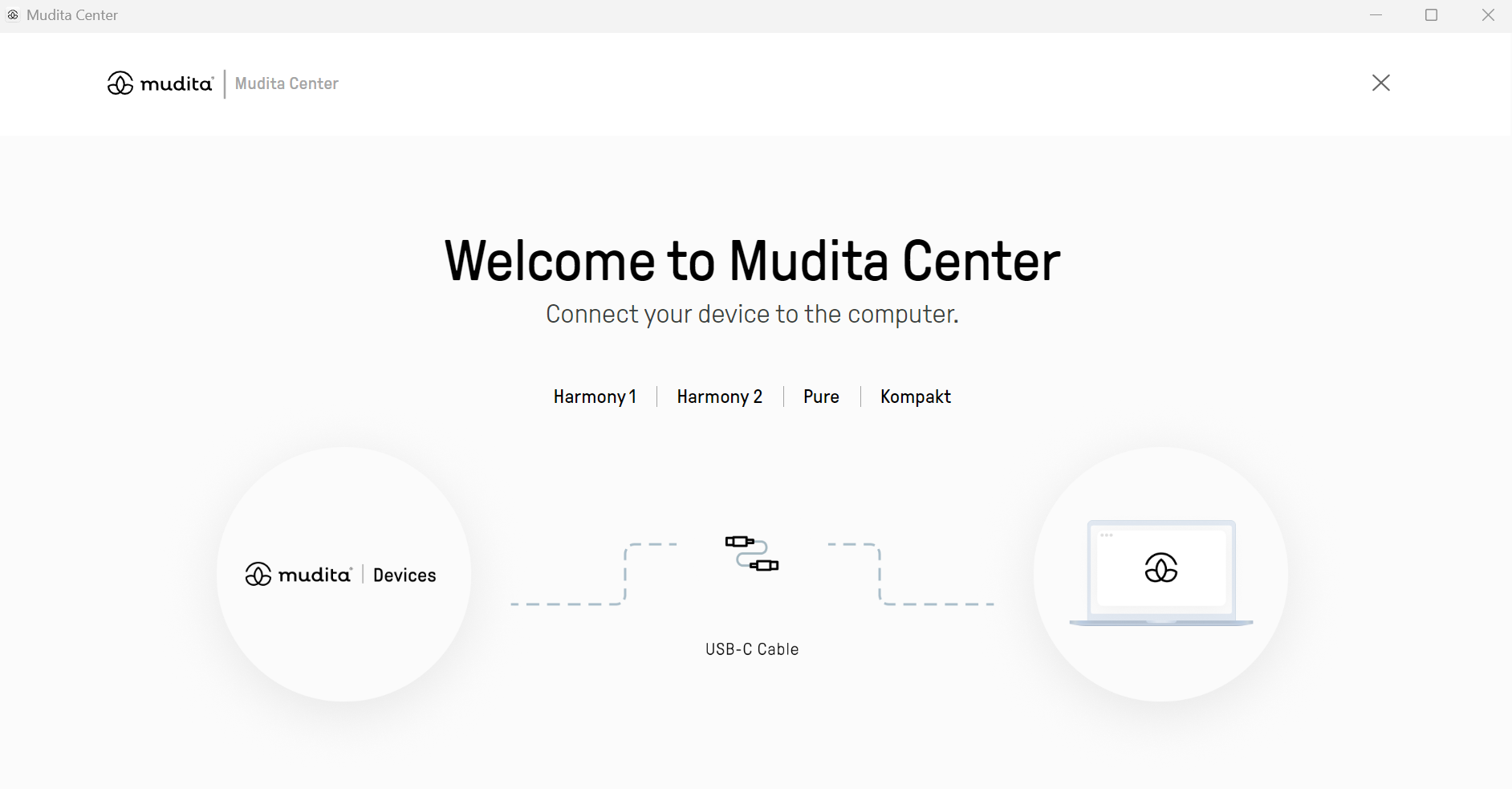
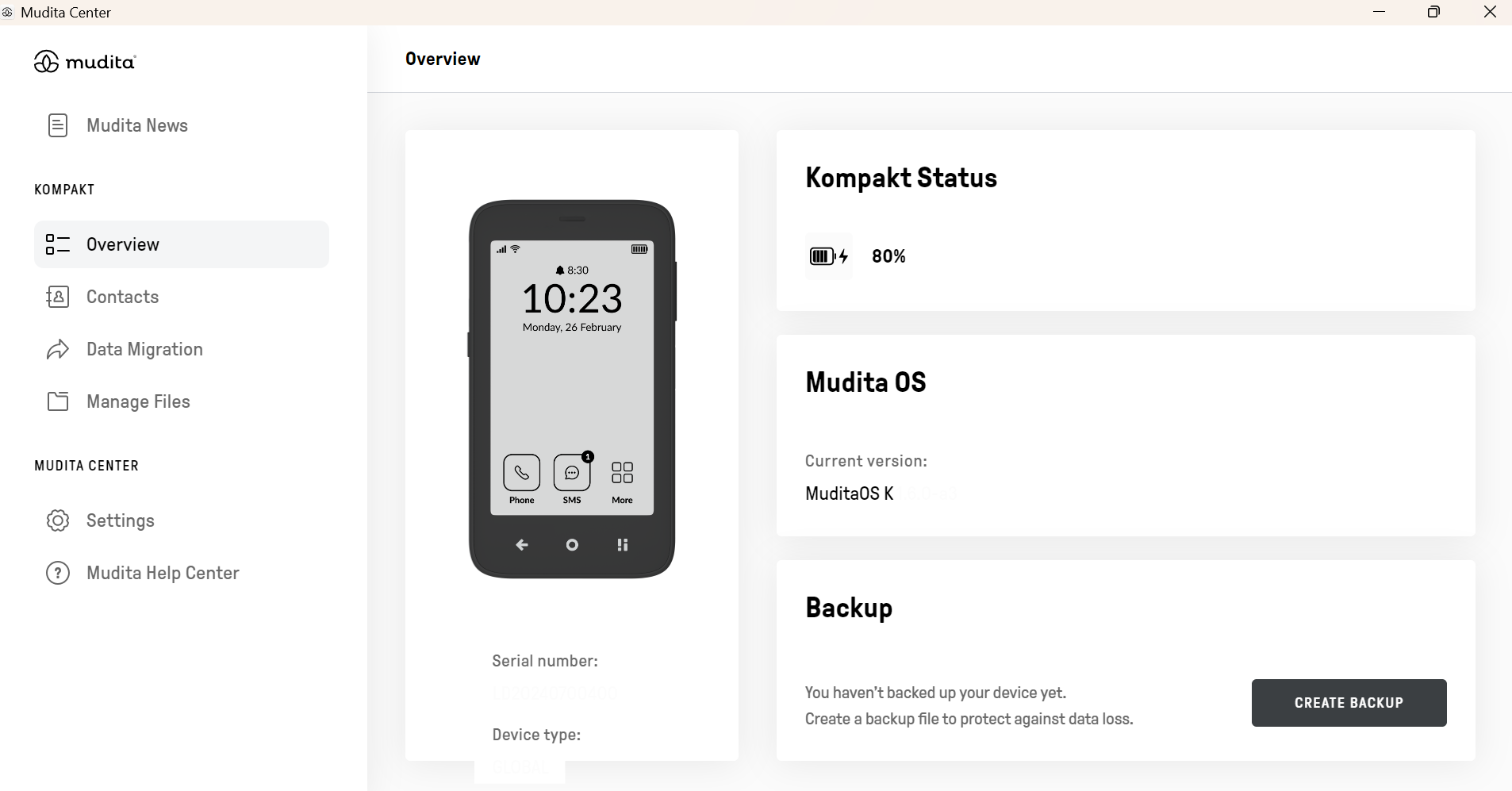
Step 2. Look under Your Kompakt -> Click Manage Files
Step 3. Click App installers
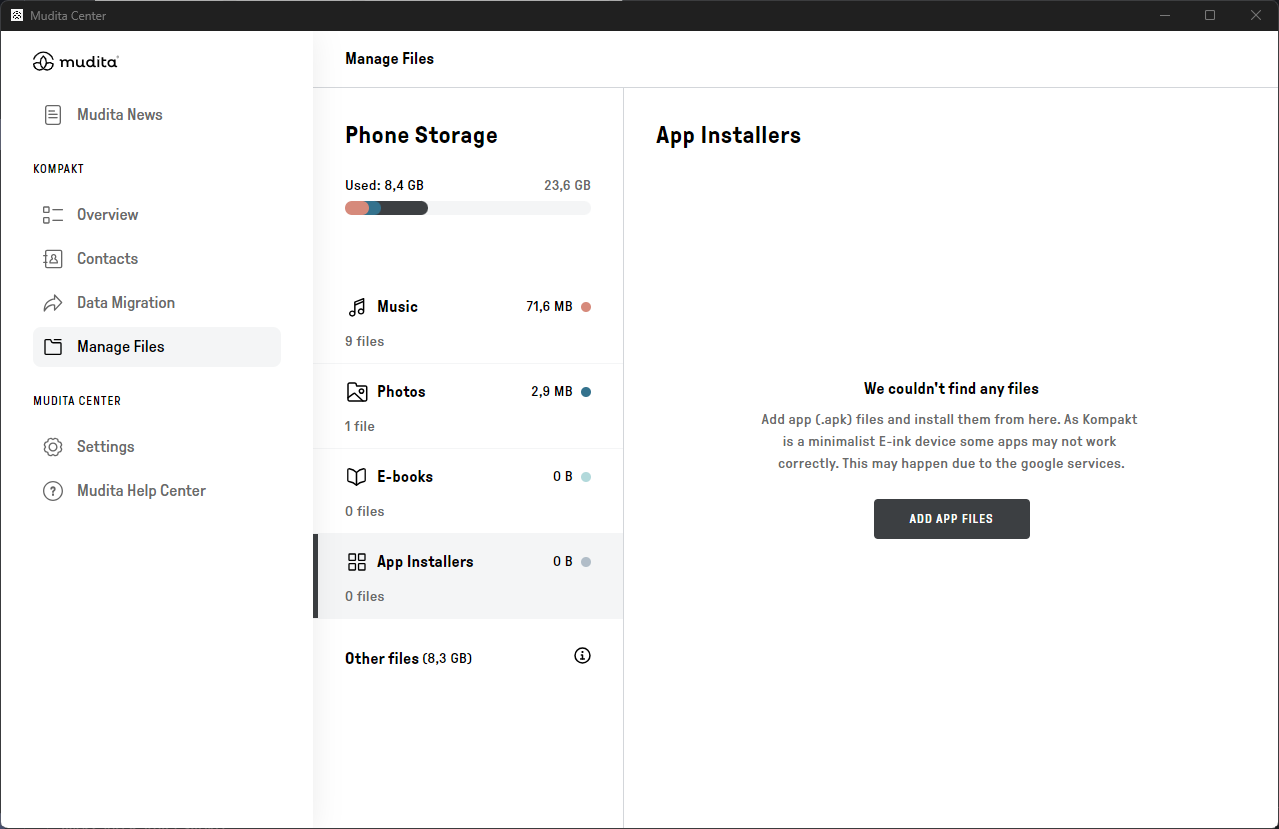 Step 4. Click Add file
Step 5. Browse and select your .apk files to upload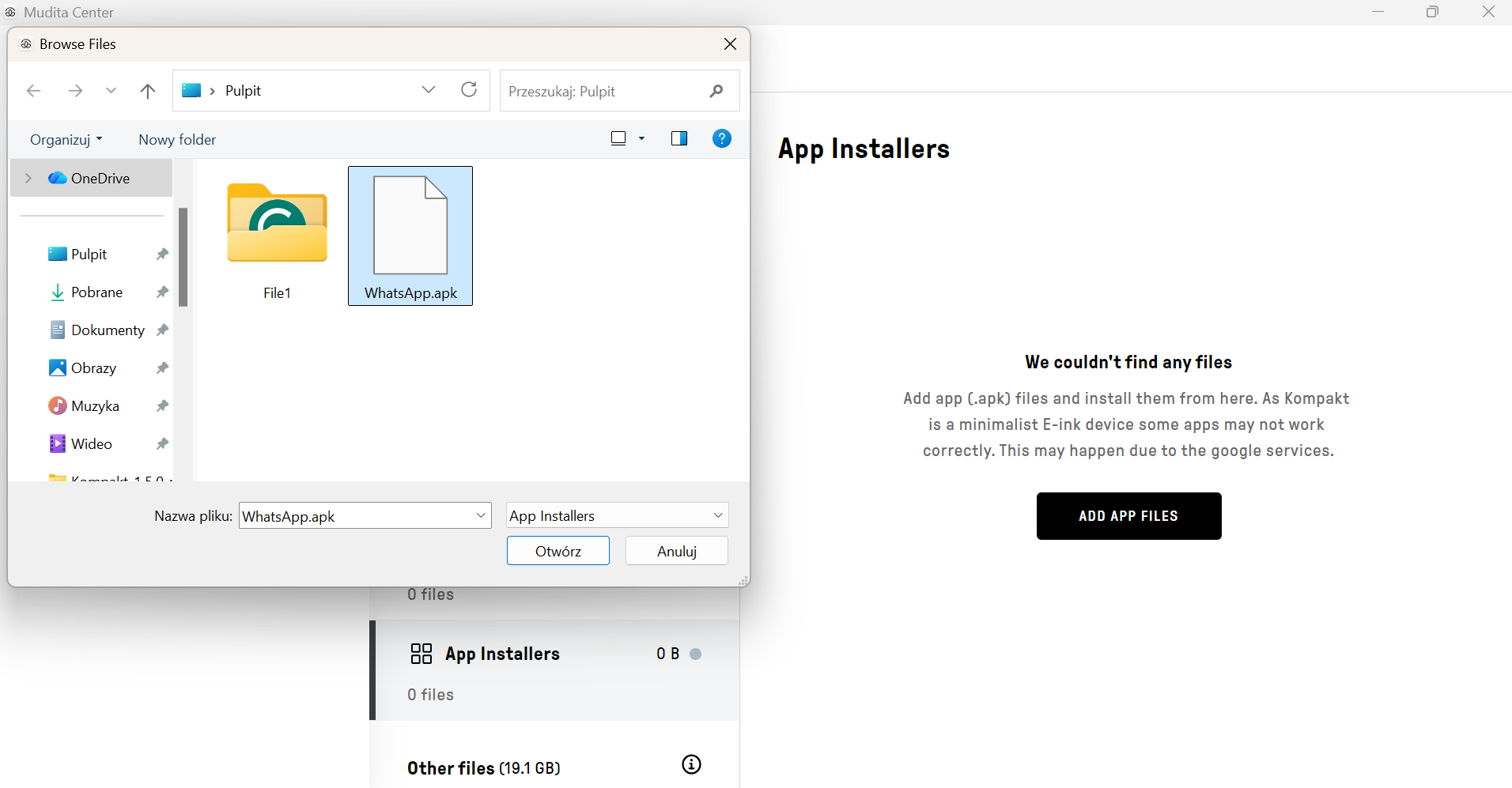
Step 6. Confirm the transfer to Kompakt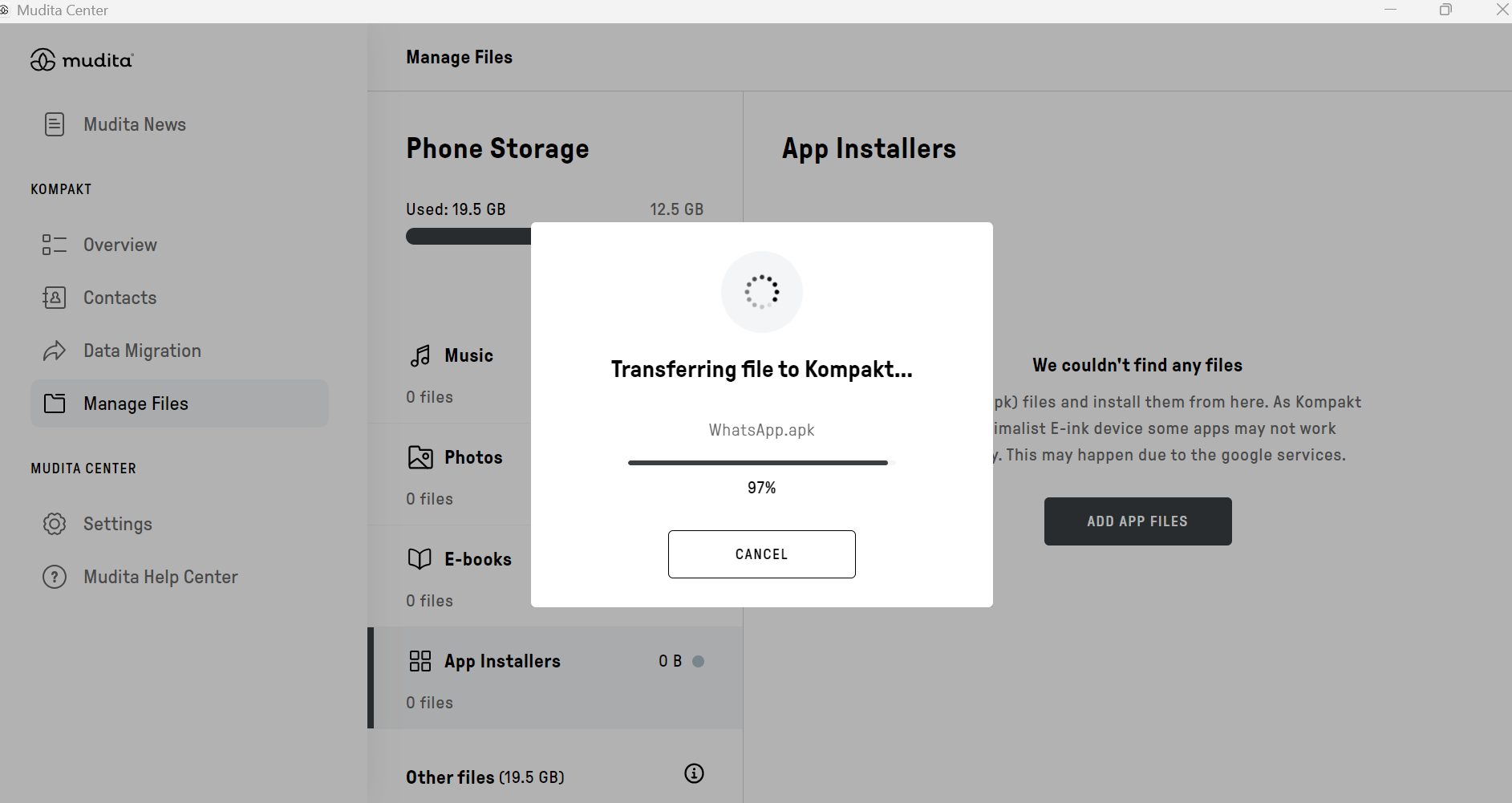
Step 7. Click on the .apk file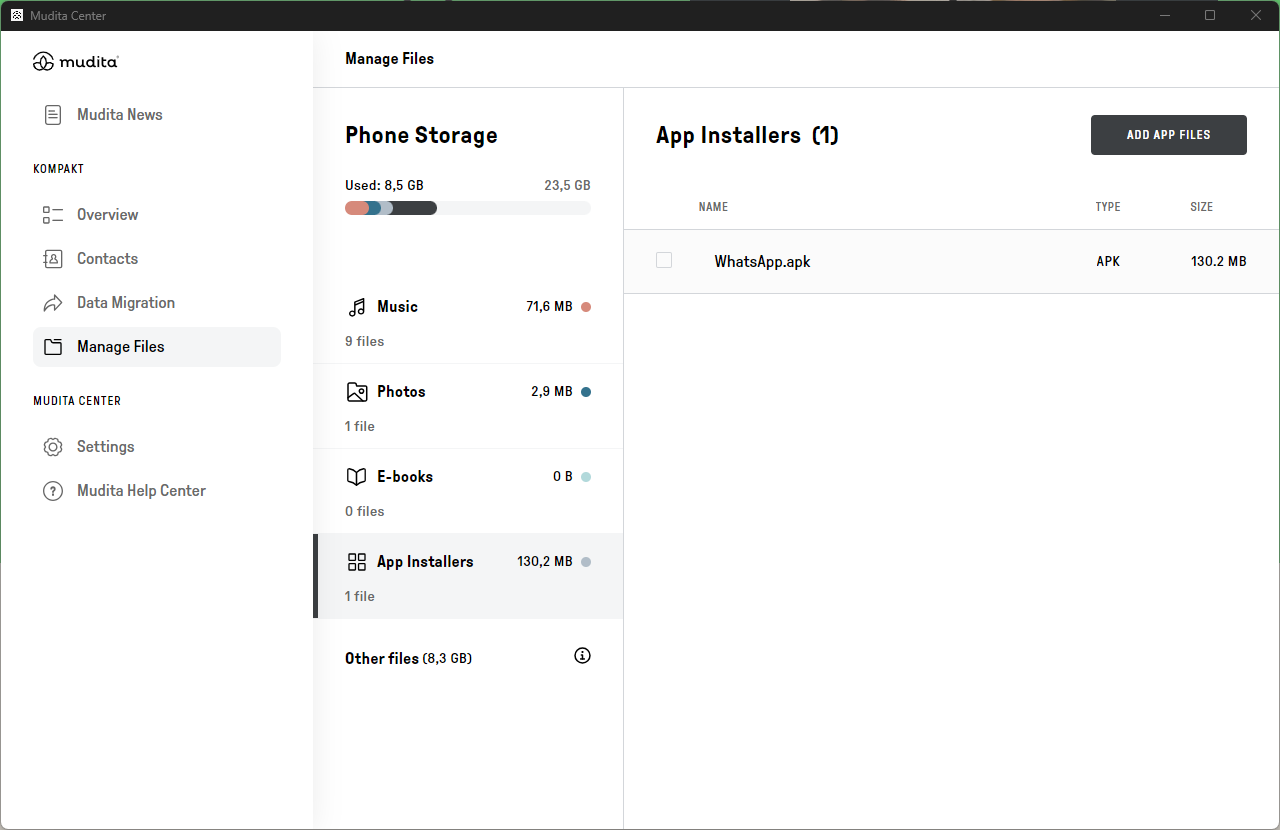
Step 8. Accept the risk of installation and confirm it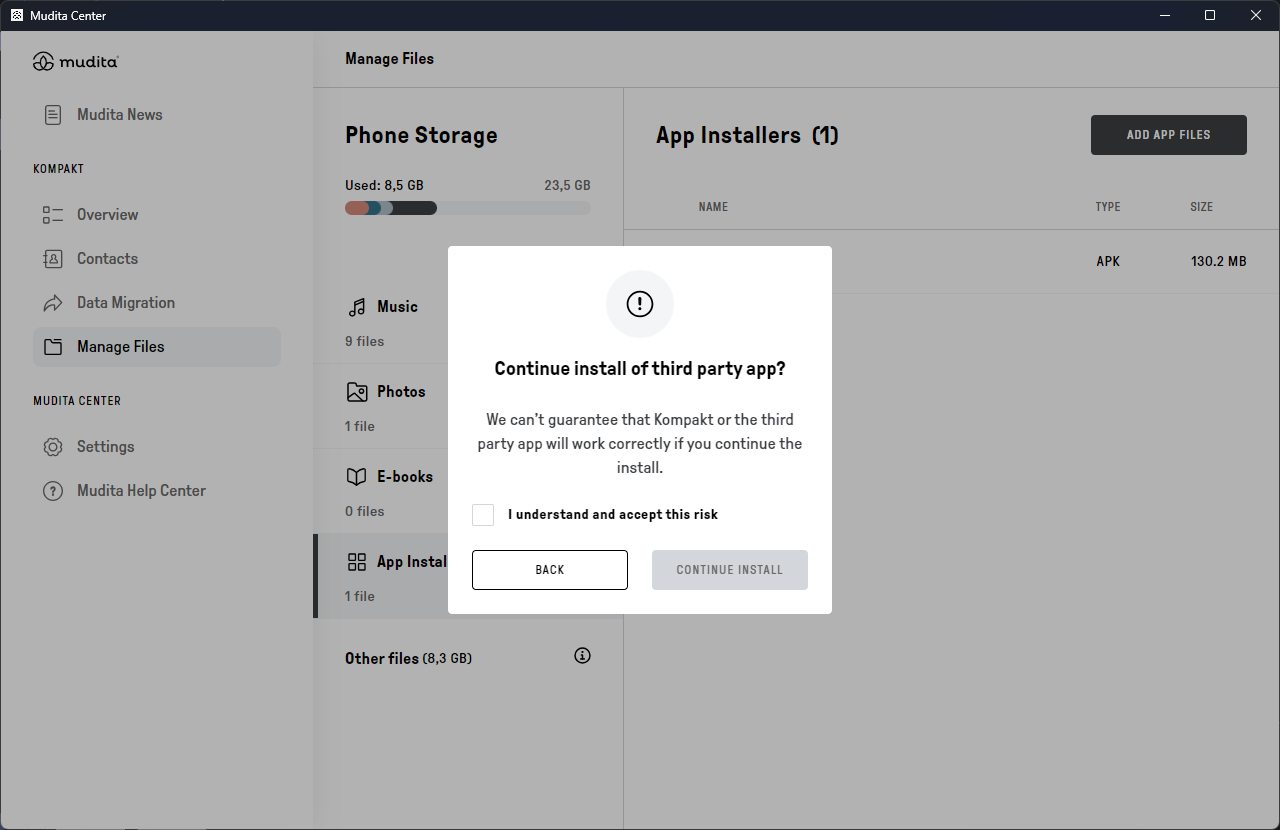
Step 9. Installation complete. You can now close this window and start using the app on your Kompakt.
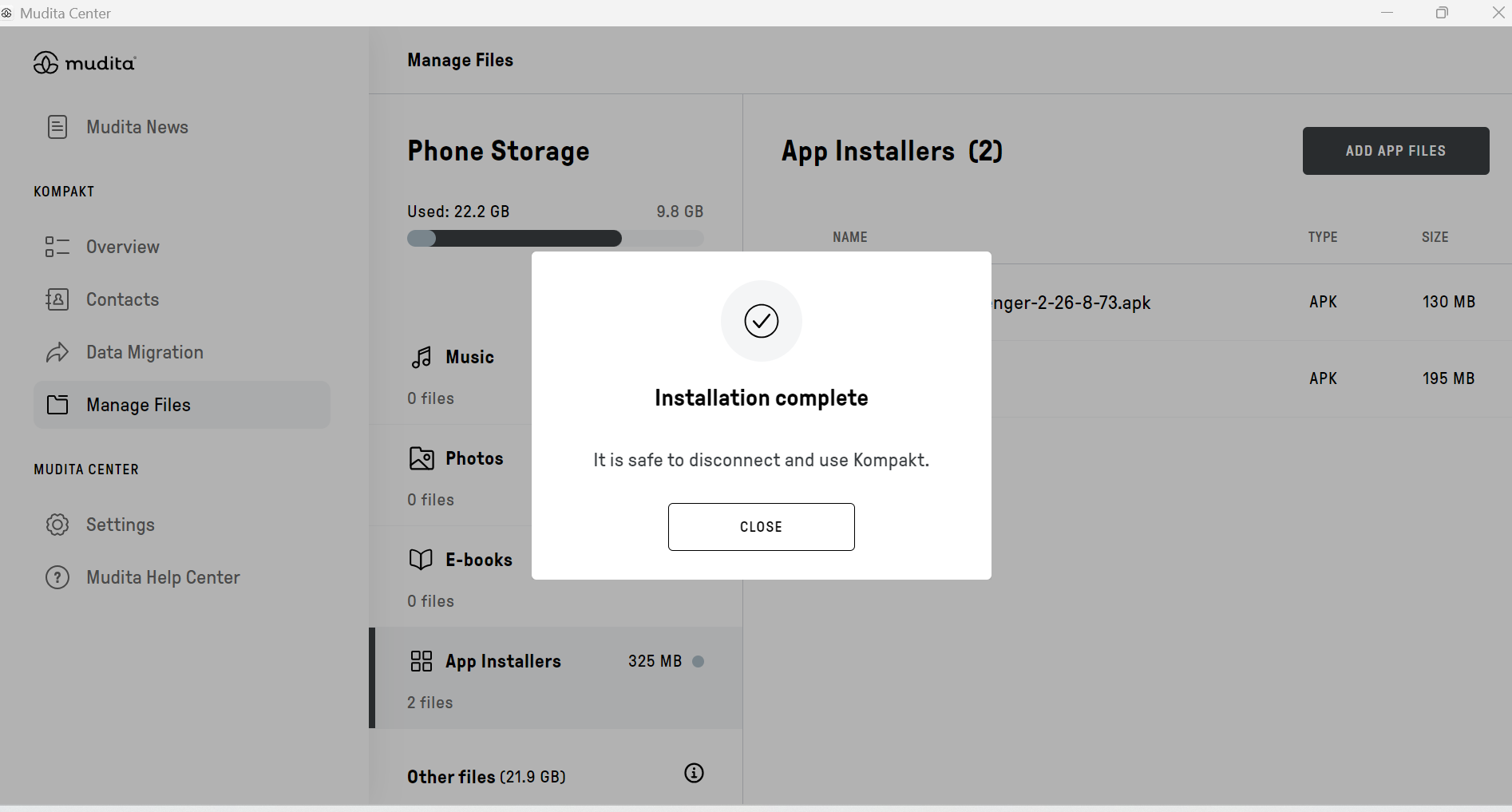
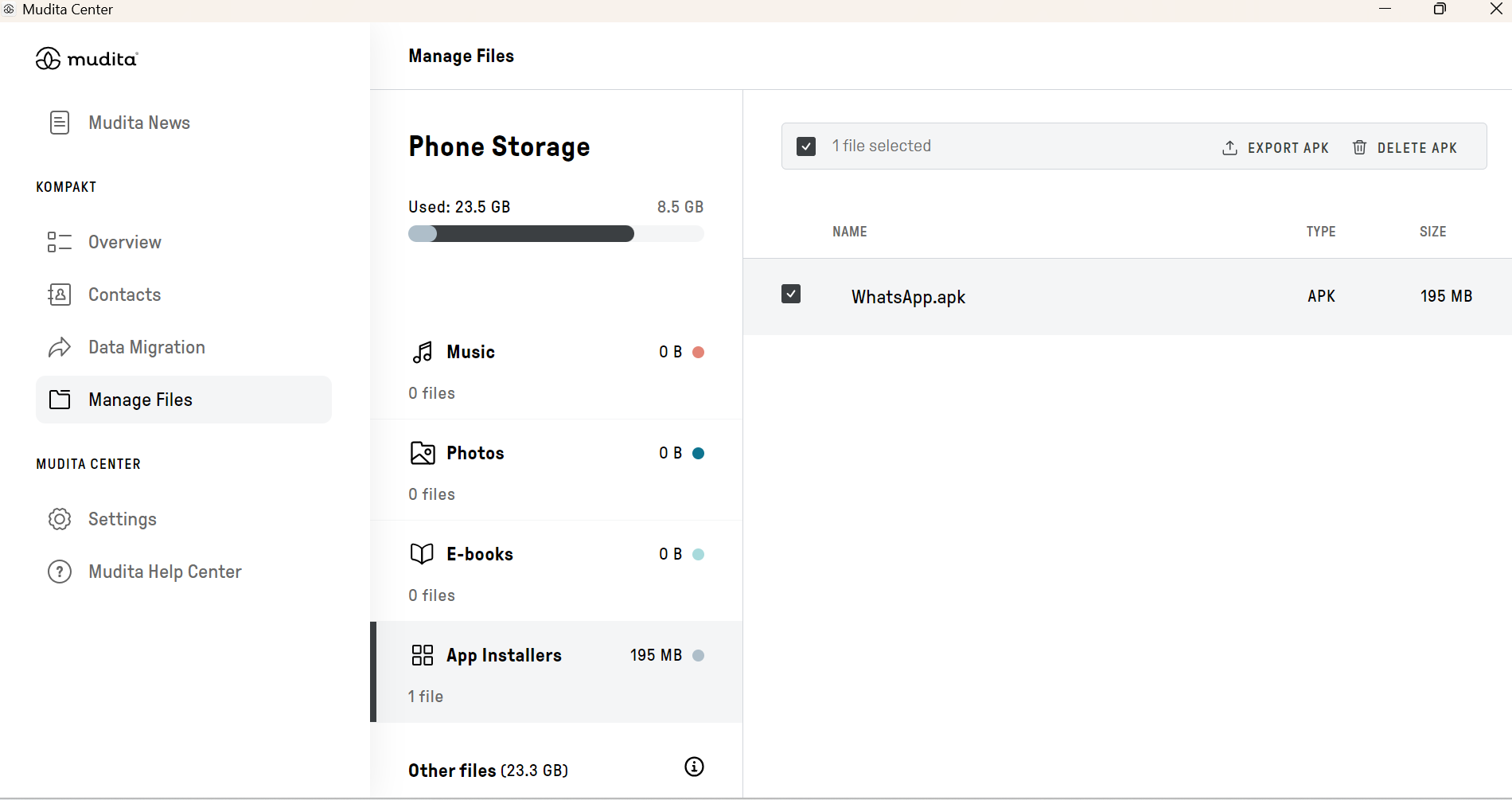
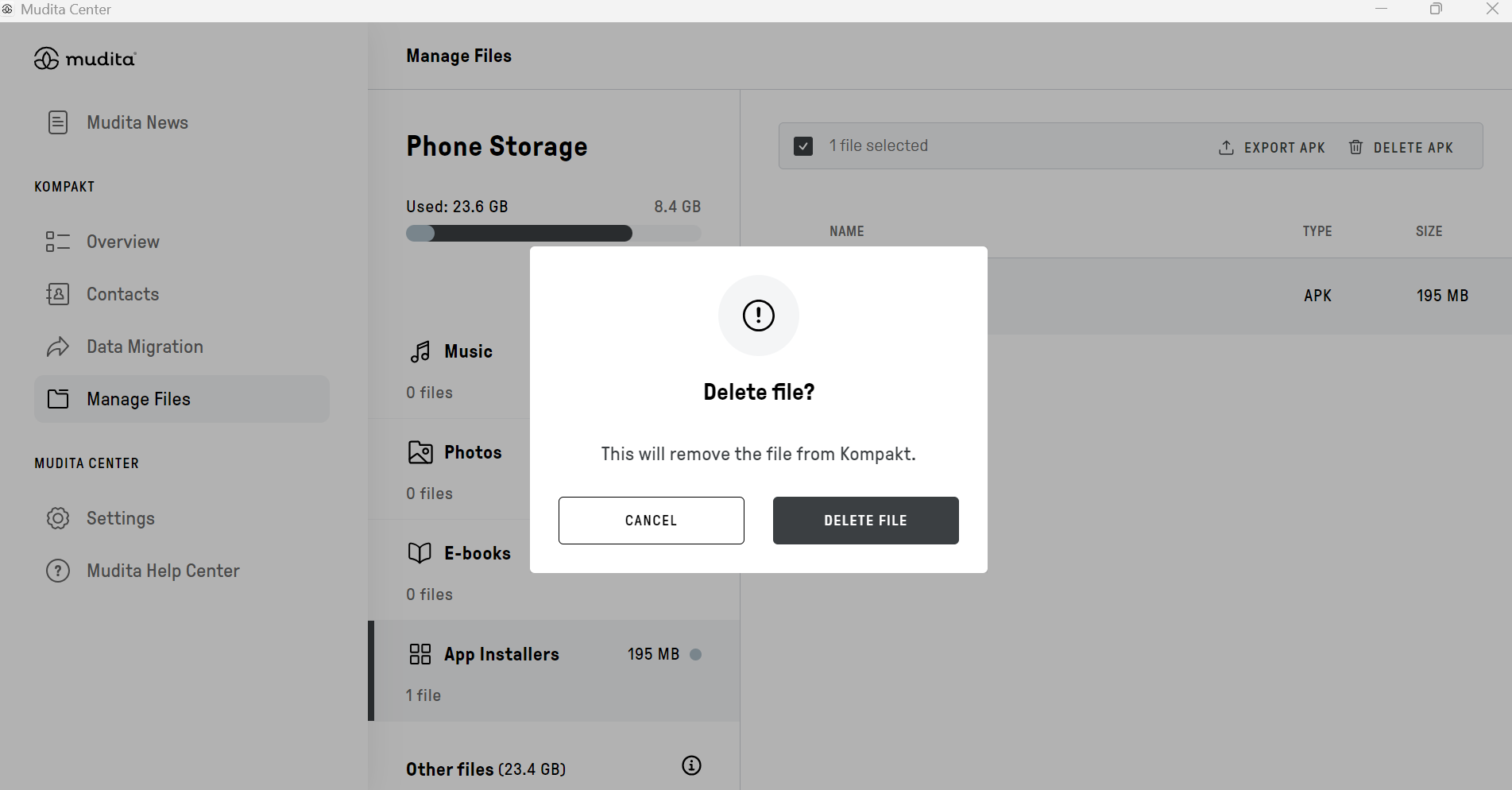
Step 10. You can safely remove the APK file to save space. Deleting this file does not affect the installed application